Data Collection & Telemetry
Overview
Update Hardware
Module and SIM Update Guides
Module Identification
Module Swap Wizard
SIM Swap Wizard
AT&T / T-Mobile Configuration Guide
Verizon Configuration Guide
Worldwide H1 SIM Configuration Guide
SIM Replacement Instructions
Wi-Fi Configuration Guide
Firmware Update
Troubleshoot
ZL6 Troubleshooting Guide
ATMOS 41W Troubleshooting Guide
EM60G Troubleshooting Guide
EM50 Series Troubleshooting Guide
Communication Test
List Cellular Carriers
Test Button & Status Lights
Fix: Retroactively Enable LTE-M Bands for 4G in Europe
Sensor Current Draw Check - ZSC
App Location Permissions on iOS and Android
Coverage
Accessories
ZENTRA Cloud 1.0
Quick Start
Organizations
Account
Edit Account Profile
Update Account Password
Lost Password/Password Reset
Set Measurement Unit Preferences
Users
Devices
Device Inventory
Edit Device
Re-provision ZL6 to European Server
Add Device
Remove Device
Time-zone and Location Override
Calibrations
Downloads
Dashboard
Enable Chart Status
Create Custom Charts
Color Picklist
Add Traces to Chart
Chart Stats
Print Charts
Set a Target Range
Lock Chart Axes
Chart Date Range Picker [NEW]
Download Chart Data
Notifications
Models
Daily Light Integral
Ground Water Elevation
Ground Water Depth
Plant Available Water
Daily Light Photoperiod
Chill Hours
Growing Degree Days
Create a Model
Evapotranspiration
Subscriptions
Error Codes
Applications
FAQ
ZENTRA Field
ZENTRA Cloud 2.0
Frequently Asked Questions
Introduction to 2.0
Getting Started
User Account
Setup
Loggers
Add Data Logger
Configure Data Logger
Device Map
Data Logger Charts
Download Data Logger
Logs
Archive
Handhelds
Dashboards
Explorer
Data
Workspaces (Projects)
Alerts
Environment Models
Chill Hours [2.0]
Daily Light Integral [2.0]
Daily Light Photoperiod [2.0]
Evapotranspiration [2.0]
Groundwater Elevation [2.0]
Groundwater Depth [2.0]
Growing Degree Days [2.0]
Heat Index [2.0]
Heat Stress Wet Bulb Globe Temperature WBGT [2.0]
Leaf Wetness Amount of Water [2.0]
Plant Available Water [2.0]
Utah Chill Model [2.0]
Wind Chill [2.0]
Subscriptions
Feedback
API
v3.0/4.0
US Server API
EU Server API
TAHMO Server API
Push API
R Package
API Troubleshoot
AgWeatherNet & DAS
Manage API Keys
v5.0
Metadata
Release Notes
Accessibility
Security
Uptime & Incidents
Legal
Table of Contents
- All Categories
- ZENTRA Cloud 2.0
- Handhelds
- SOLYX Go
SOLYX Go
The SOLYX Go is a portable, handheld device designed for quick, on-demand field measurements of key soil conditions. It enables users to capture spot measurements of soil water content, temperature, and electrical conductivity (EC) without the need for permanent sensor installation.
Overview
The SOLYX Go is a portable, handheld device designed for quick, on-demand field measurements of key soil conditions. It enables users to capture spot measurements of soil water content, temperature, and electrical conductivity (EC) without the need for permanent sensor installation.
Ideal for field verification, research, and rapid assessments, SOLYX Go provides immediate feedback in the field and seamlessly integrates with ZENTRA Cloud. Measurements can be synced directly to your organization.
With its simple workflow and lightweight design, SOLYX Go is well suited for:
- Ground-truthing sensor networks
- Verifying irrigation effectiveness
- Conducting field surveys and research studies
- Collecting supplemental data between fixed monitoring points
Once synced, data is securely stored in ZENTRA Cloud, where it can be accessed, reviewed, and exported at any time.
Adding a SOLYX Go to Your Account
SOLYX Go devices are added automatically - no manual registration is required. To connect a device to your organization:
- Open the SOLYX Go app.
- Log in to ZENTRA Cloud.
- Select an Organization.
- Take measurements.
The SOLYX Go will appear in the Handhelds list under Devices after measurements are taken.
Downloading SOLYX Go Data
SOLYX Go data is accessed from the Devices page in ZENTRA Cloud. Follow the steps below to export your handheld measurement data.
Step 1 - Navigate to Handhelds
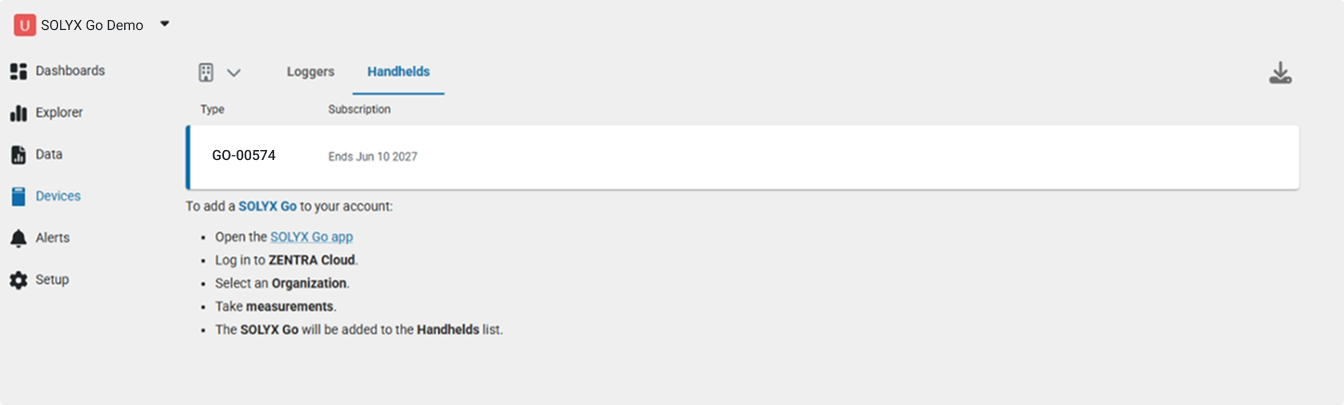
Go to Devices in the left navigation, then select the Handhelds tab. Your registered SOLYX Go device (e.g., GO-00574) will appear here along with its subscription end date.
Step 2 - Open the Download Dialog
Click the download icon in the upper-right corner of the Handhelds list. A Download dialog will appear with options for filtering your data.
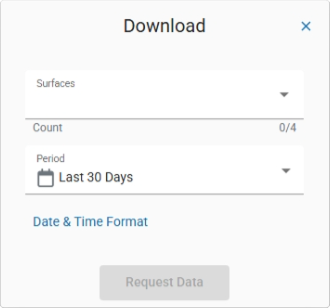
Step 3 - Select Surfaces and Period
In the Download dialog:
- Surfaces - Click the dropdown to expand the list and select one or more surfaces from which you want to download data. You can select multiple surfaces (e.g., no-till, conventional till, cover crop). The Count field shows how many surfaces are selected out of the total available.
- Period - Choose the time range for your export. The default is Last 30 Days. Additional period options are available from the dropdown.
- Optionally, click Date & Time Format to adjust how timestamps appear in the exported file.
Once your selections are made, click Request Data.
Step 4 - Download the File
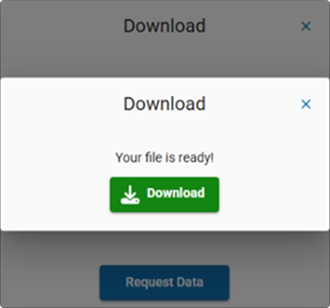
After processing, a second dialog will appear confirming "Your file is ready!" Click the green Download button to save the spreadsheet to your device.
Notes
- The Subscription column on the Handhelds tab shows when your current SOLYX Go subscription expires.
- Downloaded data is provided as a spreadsheet file compatible with standard analysis tools.
- Only surfaces with measurements during the selected period will contain data in the export.
How did we do?